
Scheduled tasks
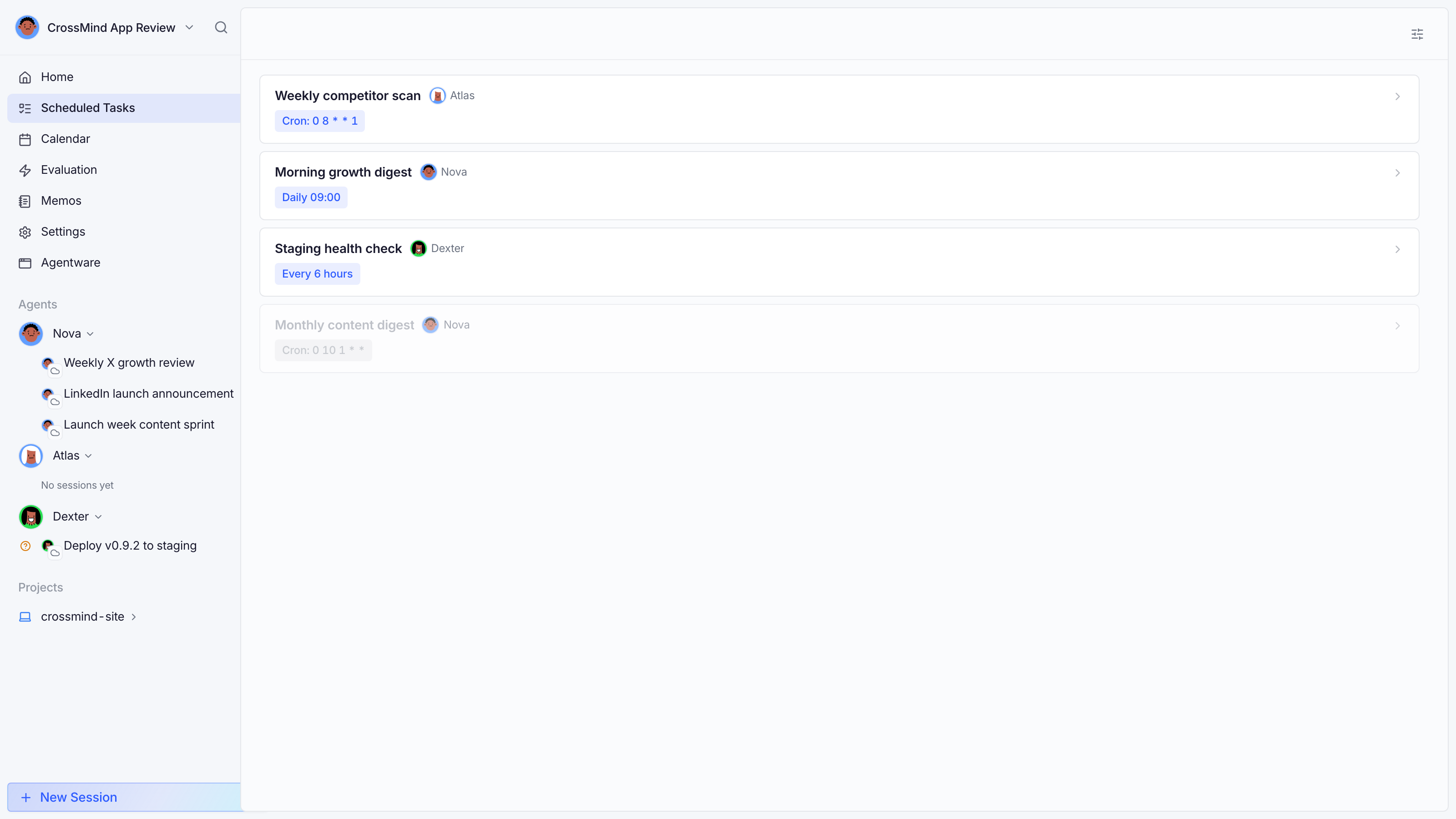
Scheduled tasks run a prompt for an agent without you in the loop: a morning digest, a Monday competitor scan, an hourly health check.
Creating a task
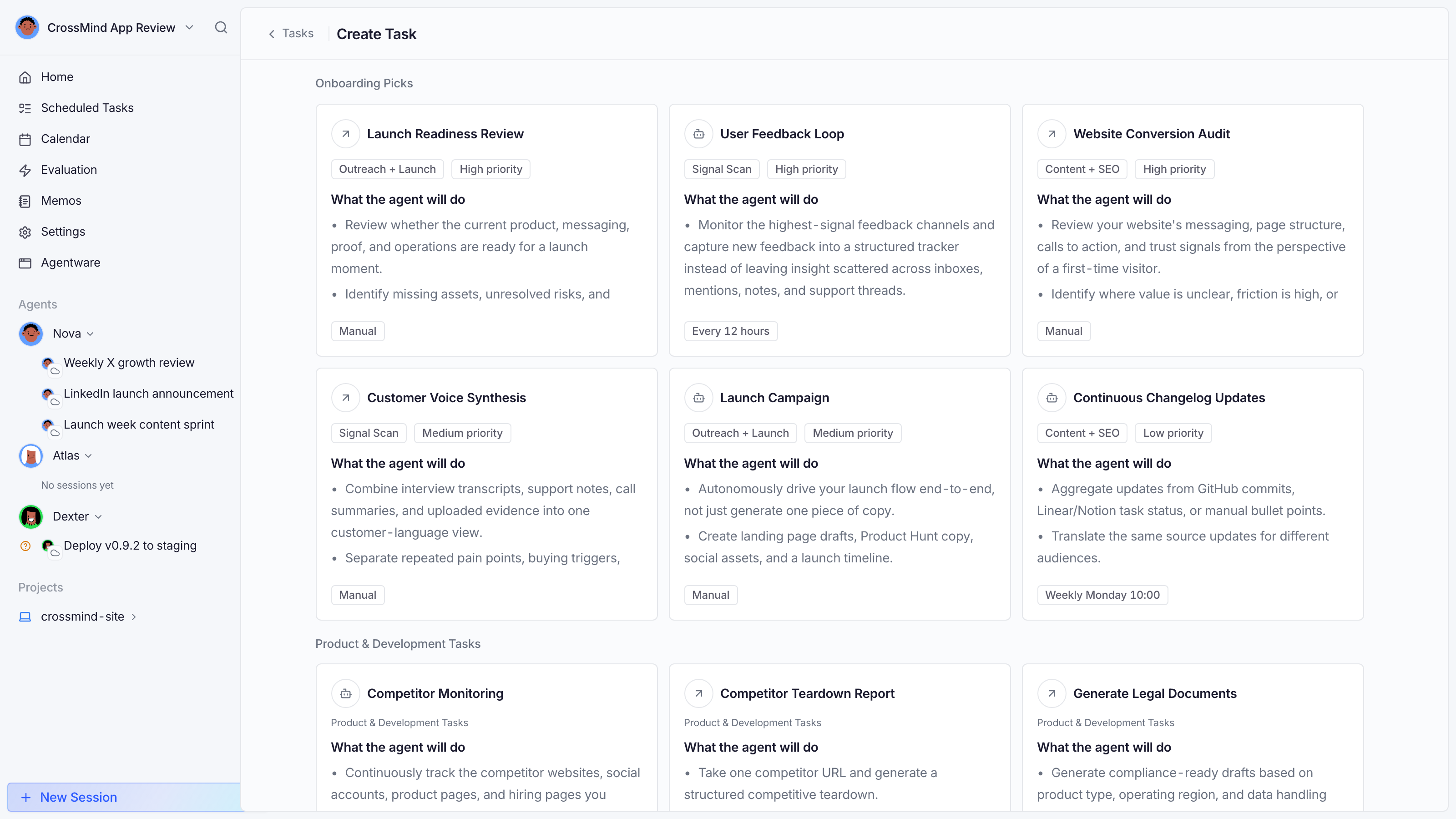
Section titled “Creating a task”Scheduled Tasks → New task (or the calendar’s ”+” button) opens a gallery of task templates: onboarding picks like “Launch Readiness Review” or “User Feedback Loop”, plus a full catalog by category. Pick one to prefill the form, or start from scratch:
- Name the task and pick the agent.
- Choose the type: direct (a bounded one-shot run, optionally with an input form) or autonomous (a goal the agent pursues start-to-finish).
- Pick a schedule: a template (“every morning at 9”), a cron expression, or an interval like every 6 hours, with an explicit timezone.
- Write the prompt the agent will receive on each fire.
- Optionally pick a runtime host (cloud or one of your computers) and thinking level.
Tasks can be disabled without deleting (paused tasks keep their history), and each task shows its total run count plus last/next run.
Schedules & catch-up
Section titled “Schedules & catch-up”A task can have several schedule entries (multiple times of day, weekday-only, and so on). Each entry independently tracks its own next/last run.
If your machine is off at the fire time, the run isn’t lost: eligible schedules catch up when the host is back (within a configurable compensation delay), so a 9:00 digest still ships after a maintenance window (without double-running).
Run history
Section titled “Run history”Every fire is a normal session: open a task to browse past runs, their summaries and costs. Runs triggered by schedules are marked as such (trigger = scheduled) and feed the calendar.